
Today we are going to present you 23 tricks for Windows 10 focused on productivity. In other words, they help you work faster or more efficiently. Therefore, we will avoid more advice related to customization or games.
We will try to make a guide as complete as possiblem including both basic tips and other slightly more advanced tricks to help both advanced and first-time users. As we always say, if ou think we've mussed an intesresting trick, feel free to share it in the comments.
Goodbye Cortana

If you use Cortana, it can be of great help. but if the system does not convince you, the space it occupies in the taskbar coud be used to show icons of other applications that you use more frequently.
To remove Cortana from the taskbar and reclaim visible space, you just need to rigth-click on the search bar (or the icon) and use the Cortana > Hidden menu. If you want to keep Cortana, but as an icon instead of a search bar, the choose Show Cortana Icon.
Virtual Desk For Everyone

Windows 10 includes support for virtual desktops which, as the name suggests, is something like separate workspaces. In this way, you can maintain different profiles for work, personal things and games. The applications continue to run windows belong to a certain desktop and do not appear in the rest.
Virtual Desktops help you organize and separate tasks and their use is very simple. You must first open the task view (shortcut: Windows + Tab) and then click on New Desktop. You can then switch between the different desktops using this same window.
Avoid Distrations

The latest versions of Windows 10 released the Focus Assistant, a kind of do not disturb mode that prevents you from receiving notifications and alarms when conditions are met. You can activate it directly from the quick panel of notifications settings, by clicking on Concentration Assistant.
If you want a more complete configuration you must go to Windows Settings > System > Concentration Assistant. There you can choose to automatically activate at a certain time, when you are mirroring the screen, while playing games or when using full screen applications.
Loggin Without Entering Password

This trick is not suitable for all audiences but is usegfull if you live alone and you think that there is absolutely no possibility that someone has physical access to your PC. This is because it allows Windows to log in without having to enter the password. The password is kept for practical purposes, but windows does not ask for it at startup.
To do this you only need to open the Windows run box (shortcut: Win + R) and type netplwiz. This opens the User Accounts Section, where you must uncheck the box Users must enter their username and password to use the computer.
Control The Resources In Use

Good productivity requires a PC with good performance, and here you best ally is the Task Manager. To open it, you just need to right click on the taskbar and choose Task Manager from the menu.
By default the Windows 10 Task Manager shows a bland list of open applications and nothing else. Click More details to display more complete information, and don't miss the performance tab, where you can see graphs on CPU, memory, disk and network usage, helping you determine if the system is saturated.
Customize Your Browser Shortcut

Quick Access is kind of like Windows File Explorer Bookmarks. It is at the top always at hand, and it is completely customizable: you can add and remove folders as you wish.
To remove folders from Quick Access, right-click on them and choose Unpin from Quick Access. To add a new folder right-ckick on it and choose pin to Quik Access. You can also the order of folders by dragging them from one side to the other.
Prevent Windows From Restarting At The Worst Time
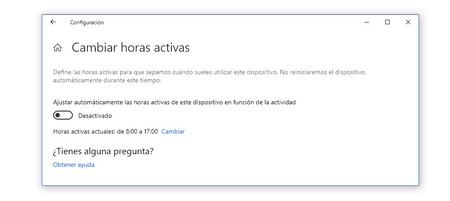
If you want to make sure that this does not happen, it is best to go to Windows Settings and enter the Update and security section . Click on Change active hours , where you can choose a time zone in which you will be using the PC and, therefore, you do not want it to restart. Another minor trick is being able to configure Windows automatic shutdown.
Shake A Window To See The Desktop
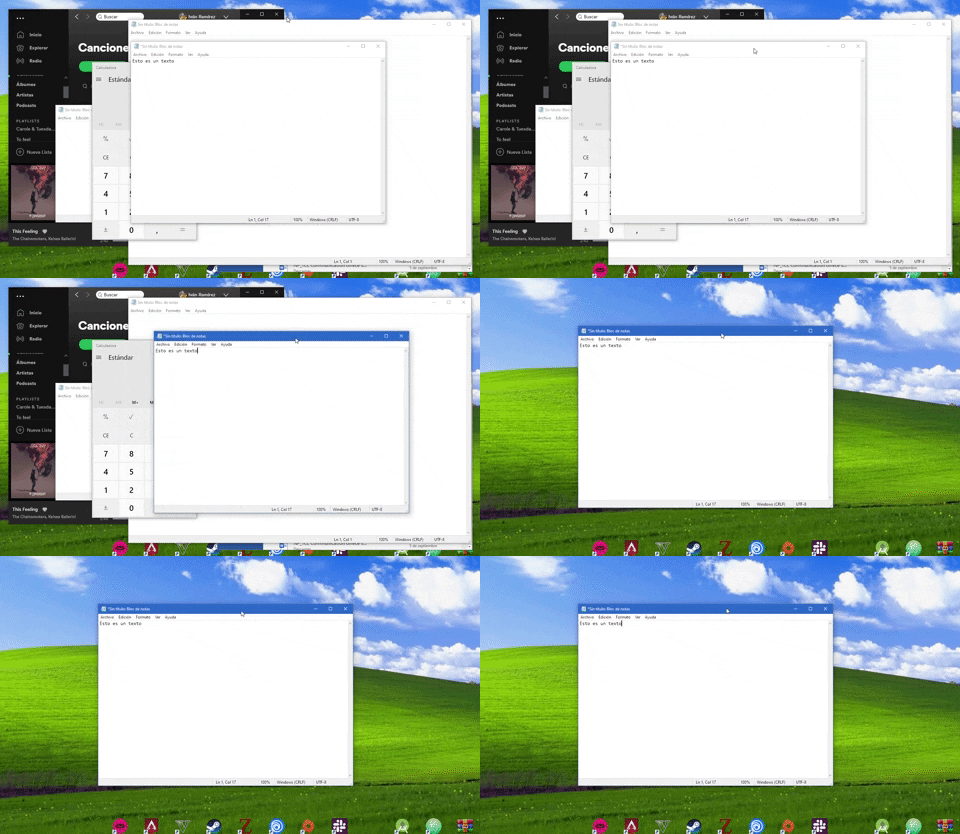
This trick has its time, although it does not stop being useful. If you have a lot of windows open and you need a little tidiness , grab the window you're using and shake it until the rest are minimized.
This trick has the proper name of Aero Shake and was introduced for the first time with Windows 7. Fortunately Microsoft has kept it in the subsequent versions, and it is a quick way to remove windows from the middle.
Divide The Screen In Two
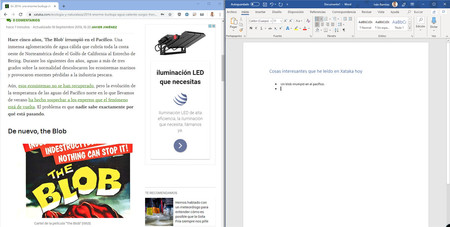
Of course, sometimes you might need to have several windows open at the same time , to copy data from one of them to the other (or watch YouTube videos while doing something else, although this I am not sure if it will increase your productivity).
Windows automatically adjusts windows to fit around one edge of the screen just by moving it closer to them. Also, you can use the Windows + Left / Right keyboard shortcuts to put a window on the left or right side, as appropriate. When you put two windows next to each other, by clicking in the middle you can adjust the size of them.
Screenshots And Annotations
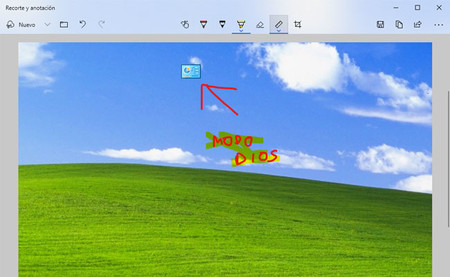
The Snipping Tool consists of four modes: Rectangular Crop, Freehand Crop, Window Crop, and Full Screen Crop. After making the cut itself you can edit it by adding freehand annotations.
Record Screen On Video
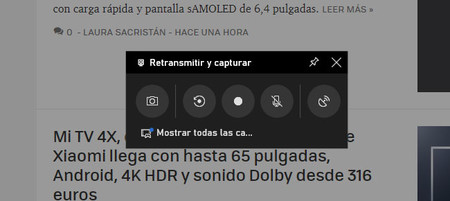
To do this, you must first open the Xbox bar using the Windows + G keyboard shortcut. Click on Broadcast and capture and there you will find the record button. Audio recording can be activated through the PC microphone.
Create A Folder In "God Mode"
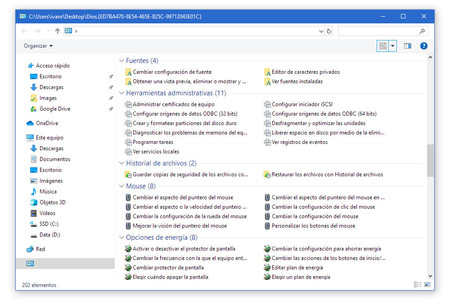
The most curious thing about it is that you can create this folder yourself. For this, you only need to create a new folder as usual, but renaming it to enter the following name:
GodMode.{ED7BA470-8E54-465E-825C-99712043E01C}
Secret Menu Of Installed Apps
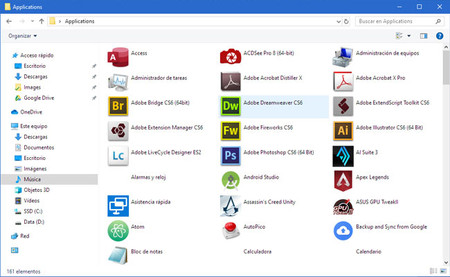
Unlike the Start Menu, here there are no folders or subfolders, rather it is a simple list of installed apps , no more. As expected, a double click opens the application on duty. To obtain it you must type this in the address bar of the file explorer:
Shell:AppsFolder
Windows In Tablet Mode
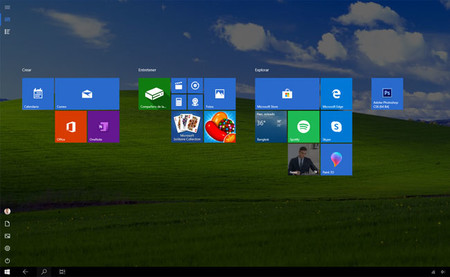
If you prefer this type of interface or you are running Windows on a device with touch input, this mode can be more useful and productive than the original. The best thing is that to activate it you only need to press a button: Tablet mode, in the quick settings in the notification panel.
Fast Notes
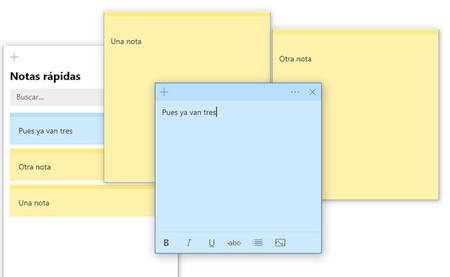
Using sticky notes in Windows 10 is very easy: just open the application and start creating notes by clicking the + button . An interesting touch is that these notes can be synchronized with the mobile , to always have them at hand.
Projects The Screen On The TV
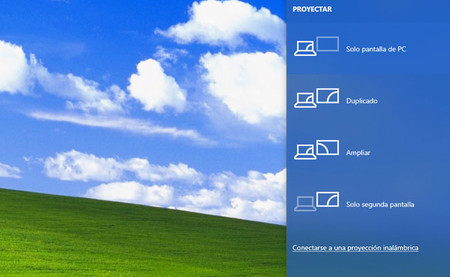
It's a very simple process, as you only need to use the Project quick setting and then click Connect to wireless projection . Windows will then search for nearby compatible devices and you will need to click on them to connect and start projection.
Print As PDF
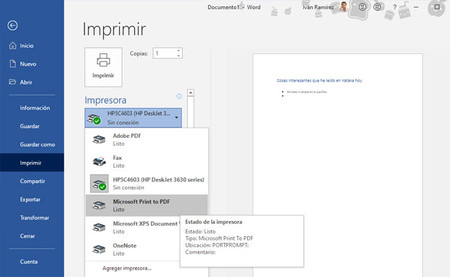
To achieve this you only need to use the usual Print menu, but choosing Microsoft Print to PDF as the printer . As the name suggests, instead of printing anything, this virtual printer will generate a PDF document, which you can choose where to save.
Open Multiple Instances Of The Same App
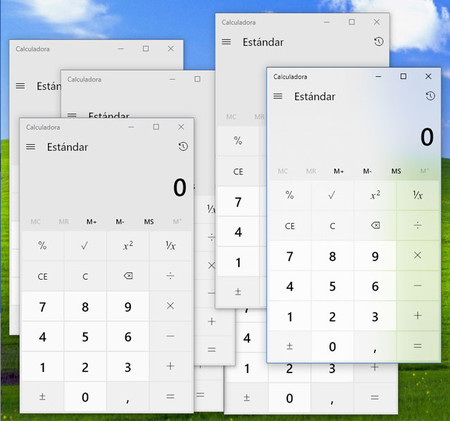
You could right-click the icon and click its name again, but what is much faster and how is it to click the middle mouse button (or, if you don't have a middle button, a normal click while holding the Shift key).
Offline Maps
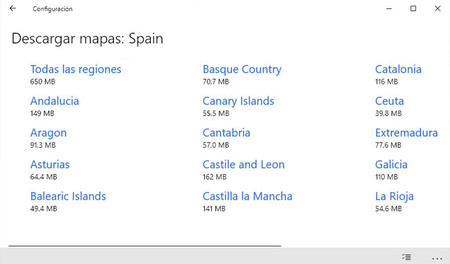
Opening the Maps app, in the Settings> Offline Maps menu, you will get to the settings menu from which you can download entire regions of maps for offline use .
Do Date Calculations
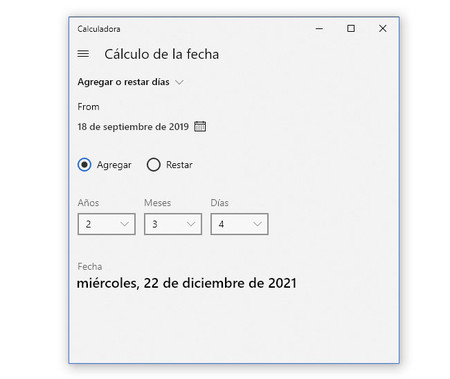
The latter is especially interesting, as it allows you to add or subtract days, weeks and months to a date , as well as see how many days, weeks and months there are of difference between two dates that you specify.
Share Your Internet Connection
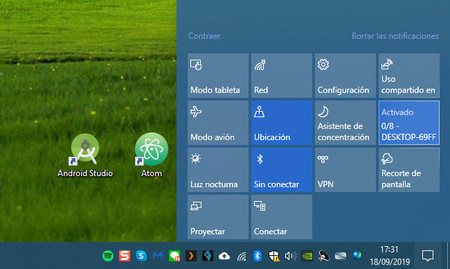
Another advantage of sharing the connection with Windows 10 is that it is especially easy, since you only need to press the Coverage Zone button in the quick settings. Windows creates a password on its own, but you can set it - and change it - by right-clicking the button and choosing Go to settings , then clicking Edit.
Activate The On-Screen Keyboard
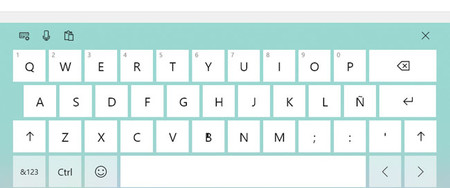
For some reason, Windows 10 has two virtual keyboards . One of them you activate it from the run menu (shortcut: Windows + R), typing OSK , while the other requires you to right-click on the taskbar and activate the function Show the touch keyboard button.
Synchronize Google Calendar And Mail
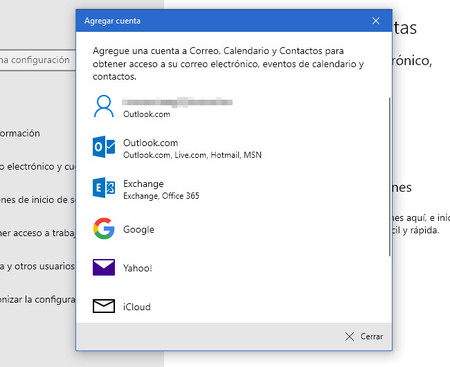
This Google account can be used both to check your Gmail mail in Mail and to see Google Calendar events in Calendar or contacts saved in your Google account in Contacts.
Bonus: Must-Have Keyboard Shortcuts
Finally, we couldn't pass up the opportunity to offer you a few useful keyboard shortcuts that will save you a lot of unnecessary clicks. Some are new to Windows 10, while others are timeless classics.- Win + A . Open the notifications.
- Win + D . Show Desktop.
- Win + M . Minimize all windows.
- Win + E . Open the file explorer.
- Win + K . Open the menu to connect devices.
- Win + L . Block Windows.
- Win + P . Open the panel to project the screen.
- Win + R . Open the Run menu.
- Win + X . Open the advanced tools menu.
- Win + . It lets you temporarily see the desktop.
- Win + G . Open the game bar.
- Win + Pause . Open the System section of the Control Panel.
- Win +. Open the emoji picker.
- Win + Left / Right Arrow + Up / Down: Set the window to one side.
- Alt + Tab: Switch between recent windows.
- Win + Tab: Task view, all open windows are visible.
- Win + C: Make Cortana appear.
- Win + Ctrl + D: Create virtual desktop.
- Win + Ctrl + F4: Close active virtual desktop.
- Win + Ctrl + Left or Right: Navigate between virtual desktops.
- Win + I: Run the system configuration.
Post a Comment
Comments here, cracks!